HOME | ABOUT US

Why Back Up Automation is essential for Data Protection

What is backup Automation?

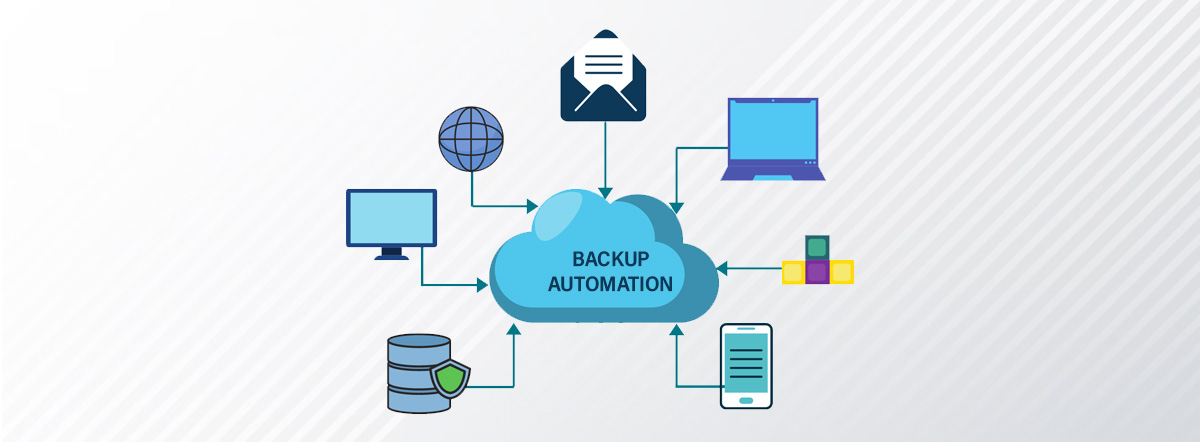
Backup automation is the process of automatically creating and managing backups of data. This includes scheduling backups to run at specific intervals, as well as automating tasks such as verifying the integrity of backups, and performing data restoration. Backup automation is typically accomplished using software tools, which can be scheduled to run on a regular basis, or triggered by specific events.

Backup automation can be used to back up data from various sources, including servers, desktop computers, laptops, and mobile devices. Common types of data that are backed up include files, emails, databases, and virtual machines. Backup automation can also be integrated with cloud services, so that data can be backed up to the cloud for added protection and accessibility.

The main benefits of backup automation include:

  • Saving time and reducing the risk of human error by automating the backup process
  • Increasing the frequency and consistency of backups, which improves the chances of being able to recover lost data
  • Enabling the ability to perform backups of large volumes of data, which would be impractical to do manually
  • Enabling the ability to recover data from different points in time, which can be useful for disaster recovery or for rolling back to a previous version of data

Overall, backup automation helps organizations to protect their data by automating the backup process, which can save time, reduce the risk of human error, and improve the consistency of backups. The basics of data backup automation include:

  • Identifying the data that needs to be backed up: This includes determining which files, databases, and applications need to be protected and how often they need to be backed up.
  • Choosing a backup solution: There are several options for backup solutions, including cloud-based backup, on-premises backup, or a hybrid solution. Each option has its own set of benefits and limitations, and the right solution will depend on the company’s specific needs.
  • Setting up the backup schedule: Once the backup solution has been chosen, the backup schedule can be configured. This includes specifying how often backups are performed, what time of day they are performed, and which data is included in the backup.
  • Automating the backup process: The backup process can be automated by using software that is specifically designed for this purpose. This software can be configured to run on a schedule, and can also include features such as encryption, compression, and off-site storage.
  • Verifying and monitoring the backups: Regularly verifying and monitoring the backups is important to ensure that they are working properly. This includes checking backup logs, testing restore procedures, and monitoring storage capacity.
  • Disaster recovery plan: Having a disaster recovery plan in place is a key aspect of backup automation, as it ensures that data can be quickly and easily restored in the event of a disaster.
  • Testing and monitoring: After the backup solution has been implemented, it is important to test it to ensure that it is working properly. This includes performing regular backups and restoring data to ensure that it can be recovered in the event of data loss.
  • Training employees: Training employees on how to use the backup solution is also important. This includes teaching them how to perform backups, how to restore data, and how to troubleshoot any issues that may arise.
  • Reviewing and updating: Regularly reviewing and updating the backup solution is important. This includes monitoring the solution’s performance, reviewing backup logs, and addressing any issues that may arise.

Backup automation has evolved significantly over the past few decades. Initially, backup automation was limited to tape-based systems, where data was backed up to tapes on a schedule, and the tapes were then stored off-site. These systems required manual intervention and were prone to errors and inefficiencies &  Over time, backup automation technology has advanced in several ways:

  • Disk-based backups: Backup automation technology has moved away from tape-based systems to disk-based systems, which are faster and more reliable. Disk-based backups are typically performed more frequently and are more easily recoverable than tape-based backups.
  • Cloud-based backups: Cloud-based backups have become increasingly popular in recent years. These backups are performed over the internet and store data on remote servers, which can be accessed from anywhere. This eliminates the need for physical tapes and provides an additional layer of protection against data loss.
  • Incremental and differential backups: Backup automation technology has advanced to include incremental and differential backups, which capture changes to data on a regular basis and help to reduce the amount of data that needs to be backed up.
  • Backup and recovery software: Backup and recovery software has become more sophisticated and easier to use. This software automates the process of backing up data, and it can be configured to perform backups according to a schedule.
  • Virtualization support: Backup automation technology has advanced to support virtualization, which enables the backup of virtual machines, simplifying the process of protecting the data and applications running on virtual infrastructure.
  • Advanced analytics: Backup automation technology has advanced to include advanced analytics which can provide insights into the backup process, such as identifying which data is most critical, and which data is most at risk.

Overall, backup automation has evolved to become more efficient, reliable, and easy to use, and it has become an important part of any organization’s disaster recovery and business continuity plan.

One should understand a few critical aspects (or) building blocks (or) basics before implementing Backup automation successfully:

  1.Backup schedules:-are typically planned based on a number of factors, including:

  • Data criticality: The most critical data, such as financial records and customer data, should be backed up more frequently than less critical data, such as old email archives.
  • Data retention: The data retention period must also be considered when planning backup schedules. How long the data needs to be retained will affect the frequency of backups.
  • Data change rate: The rate at which data changes should also be taken into account when planning backup schedules. Data that changes frequently, such as a database, should be backed up more frequently than data that changes infrequently, such as a read-only file.
  • Business hours: The backup schedule should be planned around business hours, as the backup process might impact the production systems.
  • Backup window: A backup window is a period of time during which backups are performed, this window should be planned in such a way that it doesn’t impact the production systems
  • Backup location: The location of the backups should also be considered, as offsite backups provide additional protection against data loss due to natural disasters or other events.

Once these factors have been taken into account, the backup schedule can be created. This includes specifying how often backups are performed, what time of day they are performed, and which data is included in the backup.

It’s also important to review and adjust the backup schedule periodically to ensure that it continues to meet the company’s needs and that it continues to protect critical data.

 2.RPO (Recovery Point Objective) and RTO (Recovery Time Objective):- These are two important metrics that are used to measure the effectiveness of a backup and disaster recovery plan.

  • RPO (Recovery Point Objective) is the “point in time” at which an organization wants to be able to restore data following a disruption. It is the maximum acceptable data loss that the organization can tolerate. For example, an RPO of 12 hours means that the organization can afford to lose up to 12 hours worth of data in the event of a disruption.
  • RTO (Recovery Time Objective) is the time it takes to restore normal business operations after a disruption. It is the maximum amount of time that an organization can tolerate before having to restore access to its critical systems and data. For example, an RTO of 4 hours means that the organization needs to restore access to its critical systems and data within 4 hours of a disruption.
  • In backup automation, RPO and RTO are used to determine the frequency and scope of backups, as well as the resources that are required to restore data and systems in the event of a disruption. For example, if an organization’s RPO is 12 hours and its RTO is 4 hours, it would require a backup solution that can perform backups at least every 12 hours and that can restore data and systems within 4 hours of a disruption.
  • Overall, RPO and RTO are important metrics that organizations use to measure the effectiveness of their backup and disaster recovery plans, and they are closely related to the backup schedule and the scope of data that needs to be protected.
    3.Backup cycles:- refer to the frequency and schedule at which backups are performed. This can be on a daily, weekly, or monthly basis, or at some other interval, depending on the needs of the organization. Some common types of backup cycles include:
  • Full backups: A full backup is a complete copy of all the data that is being backed up. This type of backup is typically performed on a weekly or monthly basis, and it is used to create a comprehensive snapshot of the data.
  • Incremental backups: An incremental backup only backs up the data that has changed since the last full or incremental backup. This type of backup is typically performed on a daily basis, and it is used to capture changes to the data on a regular basis.
  • Differential backups: A differential backup backs up all the data that has changed since the last full backup, regardless of whether or not the last incremental backup was performed.
  • Synthetic full backups: A synthetic full backup is a combination of incremental backups that is used to create a full backup without having to perform a complete backup of all the data.
  • Cloud Backup: Cloud Backup is a type of backup solution that stores data on remote servers, usually accessed via the internet. These backups are usually done on a schedule and can be incremental or full backups.
    4.Planning your backup cycles:-this involves determining the schedule and frequency of your backups, as well as identifying what data needs to be backed up and where it should be stored. Here are some steps to help plan your backup cycles:
  • Identify your critical data: Determine which data is most important to your organization and needs to be protected. This may include financial data, customer information, or proprietary business information.
  • Assess your data growth: Determine how much data your organization generates on a regular basis and how quickly it is growing. This will help you plan for the storage capacity and bandwidth needed for your backups.
  • Determine your recovery time objective (RTO) and recovery point objective (RPO): RTO is the amount of time it takes to recover data after a failure, and RPO is the point in time to which data needs to be recovered. Your RTO and RPO will determine how frequently backups need to be performed, as well as how many backups need to be kept.
  • Choose a backup method: Decide on the type of backup that best suits your organization’s needs. This may include full backups, incremental backups, or differential backups.
  • Schedule your backups: Based on your RTO and RPO, schedule your backups to run at specific intervals. This may include daily, weekly, or monthly backups.
  • Test your backups: Regularly test your backups to ensure that they are complete and can be successfully restored.
  • Review and update your plan: Review your backup plan on a regular basis and make adjustments as needed to ensure that it continues to meet the needs of your organization.

It’s important to have a well-designed backup plan to ensure that your data is protected and can be quickly restored in case of an emergency. It’s also important to test and review the plan regularly to ensure that it is still effective and up to date.


How to choose the best backup automation tool
 –  Choosing the best backup automation tool for your organization can be a challenging task. Here are a few key factors to consider when evaluating different backup automation tools:

  • Data protection: The primary goal of a backup automation tool is to protect your data, so it’s important to choose a tool that can handle your organization’s specific data protection needs. This includes the type of data that needs to be backed up, the volume of data, and the frequency at which backups need to be performed.
  • Backup and recovery: The backup automation tool should provide robust backup and recovery capabilities, including incremental backups, versioning, and the ability to recover data from different points in time.
  • Ease of use: The tool should be easy to set up, configure, and manage, and it should be intuitive for your IT team to use.
  • Scalability: The tool should be able to scale to meet the changing data protection needs of your organization, as your business grows and evolves.
  • Security: The tool should provide robust security features, such as encryption, and the ability to secure the data in transit and at rest.
  • Integration: The backup automation tool should be able to integrate with other systems, such as cloud services, virtualization platforms, and security tools.
  • Support: The backup automation tool should come with adequate technical support, including documentation, tutorials, and customer support.
  • Cost: The tool should be affordable and offer good value for money.

It’s important to evaluate a few different backup automation tools, and to consider the specific needs of your organization, before making a final decision. It’s also recommended to take a trial of the selected tool and test it with your own data and environment.


Backup automation & ransomware

Backup automation is an important tool in protecting against ransomware attacks. Ransomware is a type of malware that encrypts a victim’s files, making them inaccessible, and demands a ransom payment to restore access to the files. Having a robust and up-to-date backup strategy in place is critical in protecting against ransomware attacks, as it allows organizations to restore their data from a known, clean backup, and avoid paying the ransom.

Here are a few ways that backup automation can help protect against ransomware:

  • Regular backups: Backup automation ensures that data is backed up on a regular basis, which means that even if ransomware encrypts files, the organization can restore the data from a previous backup.
  • Versioning: Many backup automation solutions include versioning, which means that multiple versions of a file are saved, allowing the organization to restore an older version of a file that was not affected by the ransomware.
  • Off-site backups: Many backup automation solutions include off-site backups, which can be stored in a remote location, such as in the cloud. This allows the organization to restore data even if the ransomware attack has affected their local systems.
  • Backup validation: Backup automation solutions should include the ability to validate backups, ensuring that the backups are working correctly, and that the data can be restored.
  • Cloud-based backup: Cloud-based backups can provide an additional layer of protection against ransomware, as the data is stored in a remote location, and is therefore less likely to be affected by a ransomware attack.

However, it’s important to remember that backup automation alone is not enough to protect against ransomware. Organizations should also implement other security measures, such as endpoint protection and security awareness training for employees, to help prevent ransomware attacks from occurring in the first place.

HOME | ABOUT US
“Overcoming Complexity: Hyper-Converged Infrastructure (HCI) over Traditional Infrastructure’s Ease of Use”

HCI Vs Traditional Infrastructure

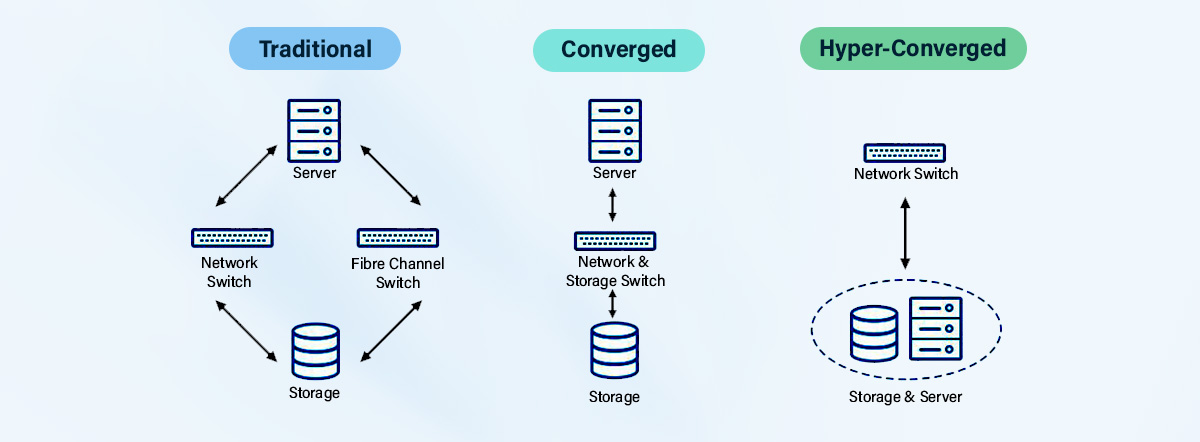
Hyper-converged infrastructure (HCI) is a type of data center architecture that combines the three main components of a data center – compute, storage, and networking – into a single, integrated system. This allows for a more streamlined and simplified data center management, as all the resources are managed and configured from a single point.


One of the main benefits of HCI is that it can lead to lower costs and increased efficiency. By integrating all the resources into a single system, there is less need for specialized expertise and fewer components to manage and maintain. Additionally, HCI is often easier to scale, as it is designed to be more flexible and can support a wide range of workloads.


On the other hand, traditional data center architecture separates these resources into different components (such as servers, storage arrays, and network switches) that are managed independently. This allows for more control over individual components and can provide more options in terms of hardware and software vendors. This can be useful for larger organizations with specific requirements for their infrastructure and the need for more control over individual components.


When considering HCI versus traditional data center architecture, it is important to consider the specific needs of the organization. HCI is often a good choice for small to medium-sized organizations that want a simpler and more cost-effective data center solution. However, traditional data center architecture may be more suitable for larger organizations with specific requirements and the need for more control over individual components.


Another important aspect to consider is that HCI solutions are typically more software-centric, they rely heavily on software to provide the necessary virtualization and management, while traditional solutions tend to be more hardware-centric, using specialized hardware to provide dedicated resources and management. This can affect the level of control and customization that an organization has over their infrastructure.


There are several reasons why companies are increasingly adopting hyper-converged infrastructure (HCI) solutions:


Simplified management: HCI integrates compute, storage, and networking resources into a single system, which simplifies data center management by reducing the number of components that need to be managed and configured. This can lead to lower costs and increased efficiency.

Scalability: HCI is often easier to scale, as it is designed to be more flexible and can support a wide range of workloads. This allows companies to more easily adapt to changing business needs.

Lower costs: HCI can be more cost-effective than traditional data center architecture, as it eliminates the need for specialized expertise and hardware, and reduces the number of components that need to be maintained.

Flexibility: HCI allows companies to easily move workloads between different systems, making it easier to adapt to changing business needs.

Cloud readiness: HCI solutions are designed to be cloud-ready, which makes it easier for companies to move workloads to the cloud, and to implement hybrid cloud environments.

Improved performance: HCI solutions can improve performance by providing more efficient resource allocation, and by reducing the amount of data that needs to be moved between different systems.

Better disaster recovery: Some HCI solutions offer built-in disaster recovery capabilities, which can help companies to more easily recover from disasters.

Agile and fast deployment: HCI solutions are designed to be easy to deploy and configure, which means that companies can get up and running quickly, and can respond more quickly to changing business needs.


There are several disadvantages of traditional infrastructure compared to hyper-converged infrastructure (HCI):


Complex management: Traditional infrastructure separates compute, storage, and networking resources into different components, which can be more difficult to manage and configure. Costs can go up and productivity can go down as a result.

Limited scalability: Traditional infrastructure can be more difficult to scale, as it requires specialized expertise and hardware. This can make it more challenging to adapt to changing business needs.

Inflexibility: Traditional infrastructure can be less flexible, making it more difficult to move workloads between different systems and to adapt to changing business needs.

Limited cloud readiness: Traditional infrastructure can be more difficult to integrate with cloud environments, making it more challenging to move workloads to the cloud or to implement hybrid cloud environments.

Reduced performance: Traditional infrastructure can be less efficient, as it requires data to be moved between different systems, which can slow down performance.

Lack of built-in disaster recovery: Traditional infrastructure solutions do not often have built-in disaster recovery capabilities, which means that companies may need to rely on additional software and hardware to implement disaster recovery.

Lengthy deployment and configuration: Traditional infrastructure solutions can be complex to deploy and configure, which can delay the time it takes to get up and running and respond to changing business needs.


In summary


HCI and traditional data center architecture both have their advantages and disadvantages. Organizations should carefully consider their specific requirements and goals when deciding which approach to use.


HCI offers a number of benefits over traditional data center architecture, including simplified management, scalability, lower costs, flexibility, and cloud readiness. These benefits can help companies to more easily adapt to changing business needs and to improve their overall performance.


Traditional infrastructure has several disadvantages when compared to HCI. These include complex management, limited scalability, higher costs, inflexibility, limited cloud readiness, reduced performance, lack of built-in disaster recovery and lengthy deployment and configuration. HCI solutions can help to address these challenges and provide a more efficient and flexible data center solution.

HOME | ABOUT US

“Why Your Company Needs to Implement Active Directory: A Comprehensive Guide”

Importance of Windows Active Directory

Windows Active Directory (AD) is an important component of many organizations’ IT infrastructure as it provides a centralized, organized way to manage and authenticate users and devices. Some of the key benefits of using AD include:

  • Centralized user and device management: AD allows administrators to create and manage users, groups, and devices in a single, centralized location. This makes it easy to manage user access to resources and ensures that user information is consistent across the organization.
  • Enhanced security: AD provides a number of security features, including password policies, user account lockout policies, and the ability to control access to resources based on user and group membership. This helps to improve the overall security of the organization.
  • Efficient and Scalable: AD allows for efficient and scalable management of users and devices, as it can handle a large number of objects and can be easily extended to support additional domains and forests.
  • Integration with other services: AD integrates with other Microsoft services such as Exchange, SharePoint, and Skype for Business. This means that users can be easily granted access to these services based on their AD credentials.
  • Support for mobile devices: AD provides support for mobile devices, which allows users to access resources from their mobile devices with the same credentials they use to access resources from their desktop.

Overall, Windows Active Directory provides a robust, scalable, and secure solution for managing and authenticating users and devices in an organization.

What are the different elements of the Windows Active directory

Windows Active Directory (AD) is a hierarchical, domain-based directory service that provides centralized management and authentication of users, computers, and other resources in a Windows-based network. The different elements of AD include:

  1. Domain: A domain is a logical group of network resources, such as users, computers, and printers, that are managed together. Each domain has a unique name, such as example.com, and it is the basic unit of organization in AD.
  2. Domain controllers (DCs): A domain controller is a server that stores and manages the AD database. It is responsible for authenticating users, managing access to resources, and replicating changes to the AD database to other DCs.
  3. Organizational units (OUs): OUs are a way to organize and manage resources within a domain. They can be used to group resources together based on different criteria, such as department, location, or security level.
  4. Groups: Groups are used to manage access to resources by grouping users together. There are two types of groups in AD: security groups and distribution groups. Security groups are used to control access to resources, while distribution groups are used to send email to a group of users.
  5. Users: Users are the individuals who have access to resources in the AD environment. Each user has a unique account that is used to log in to the domain and access resources.
  6. Computers: Computers are the devices that are joined to the AD domain and are managed as part of the AD environment.
  7. Group Policy: Group Policy is a feature of AD that allows administrators to control and manage the configuration of computers and users in the AD environment.
  8. Trusts: Trusts are used to allow resources in one domain to be accessed by users in another domain.
  9. Global Catalog: The Global Catalog is a special type of domain controller that contains a subset of the AD database and is used to speed up searching and locating resources in AD.
  10. Kerberos: Kerberos is the default authentication protocol used by AD to authenticate users and devices.

These are some of the key elements of AD, but there are also other features and components that can be used to manage and secure the AD environment, such as AD FS, AD LDS, AD RMS and more.

How Active directory has evolved from Version Windows server 2000 to Windows server 2022

Active Directory (AD) has undergone significant changes and improvements since its introduction in Windows Server 2000. Here is a brief overview of some of the key changes and enhancements in each version of Windows Server:

  • Windows Server 2000: This was the first version of AD and it introduced the concept of a centralized directory service for managing users, computers, and other resources in a Windows-based network. It provided a hierarchical structure for organizing and managing resources and it supported multiple domains and forests.
  • Windows Server 2003: This version introduced a number of new features and improvements, including the ability to create and manage Group Policy objects, support for universal groups, and the introduction of the Global Catalogue, which allowed for faster searching of AD data.
  • Windows Server 2008: This version added support for read-only domain controllers (RODCs), which allowed for more secure deployment of AD in branch offices and other remote locations. It also introduced support for fine-grained password policies, which allowed for more granular control of password policies for different groups of users.
  • Windows Server 2008 R2: This version introduced support for Managed Service Accounts (MSAs) which were used to simplify the management of service accounts in AD. It also introduced support for the Authentication Mechanism Assurance feature, which allows you to configure different levels of authentication based on the security requirements of the resources being accessed.
  • Windows Server 2012: The introduction of the Recycle Bin feature, which allows for easy restoration of deleted AD objects. It also introduced support for the use of virtualization for domain controllers, and support for more than one domain per forest which was a new feature called domain and forest functional level.
  • Windows Server 2012 R2: This version introduced Workplace Join, which allows personal devices to be joined to AD and access resources in a controlled manner. It also introduced support for the use of Azure AD for authentication and authorization, allowing for more flexible and secure access to resources in the cloud.
  • Windows Server 2016: This version introduced support for Privileged Access Management (PAM) which allowed for more secure and controlled access to sensitive resources. It also introduced support for the use of Nano Server as an option for deploying domain controllers.
  • Windows Server 2019: This version introduced support for Windows Admin Center, which allows for simplified management and monitoring of AD and other server roles. It also introduced support for the use of Azure AD Domain Services, which allows for more secure and flexible access to resources in the cloud.
  • Windows Server 2022: The most recent version of Windows Server which includes new features such as support for zero-trust network access (ZTNA), enhanced security and compliance, and improved performance and scalability. It also includes new capabilities for hybrid environments and support for new technologies such as artificial intelligence (AI) and machine learning (ML).

As you can see, Active Directory has evolved over the years to include many new features and capabilities that help to improve security, scalability and flexibility while maintaining compatibility with older versions of the software.

How to size your Server for your on-Prem Active Directory

Sizing a server for an on-Prem Active Directory (AD) deployment depends on several factors, including the number of users and devices that will be connecting to the AD, the number of domain controllers (DCs) that will be deployed, and the expected workload for the AD.

Here are some general guidelines for sizing an AD server:

  • For small to medium-sized environments (up to 50,000 users), a single domain controller with at least 8 GB of RAM and a quad-core processor should suffice.
  • For larger environments (50,000 to 100,000 users), multiple domain controllers should be deployed, each with at least 16 GB of RAM and a quad-core processor.
  • For very large environments (over 100,000 users), multiple domain controllers should be deployed, each with at least 32 GB of RAM and a multi-core processor.

It’s important to note that these are just general guidelines, and the actual resources required for your AD deployment may vary depending on the specific needs of your organization. It is recommended to consult with a Microsoft Partner or an AD expert for more accurate calculations.

How can we implement Windows AD on the cloud

There are several ways to implement Windows Active Directory (AD) on the cloud, some of them are:

  1. Azure Active Directory (Azure AD): Azure AD is Microsoft’s cloud-based identity and access management service. It can be used to authenticate and authorize users for access to resources in the cloud, including Office 365, Azure, and other SaaS applications. Azure AD can be integrated with on-premises AD to create a hybrid identity solution, allowing for seamless access to resources both on-premises and in the cloud.
  2. AWS Directory Service for Microsoft Active Directory (AWS Managed Microsoft AD): AWS Managed Microsoft AD is a fully managed service that makes it easy to deploy, operate, and scale a Microsoft AD in the AWS Cloud. It allows you to use AD to authenticate and authorize users and groups for access to resources in the AWS Cloud.
  3. Google Cloud Active Directory (GC AD): Google Cloud Active Directory (GC AD) is a fully-managed service that allows you to create and manage users, groups, and devices in the cloud, and integrate them with your on-premises AD. GC AD can be used to authenticate and authorize users for access to resources in the cloud, including Google Workspace, Google Cloud resources, and other SaaS applications.
  4. Using a Virtual Machine: You can also deploy an AD on a cloud-based virtual machine (VM), such as an Amazon Elastic Compute Cloud (EC2) instance or a Google Compute Engine (GCE) instance. This allows you to use your existing AD infrastructure and tools in the cloud, and can be useful for organizations that need to maintain control over their AD environment.

It is important to note that before implementing any of these solutions, you need to have a good understanding of your organization’s requirements, security needs, and compliance requirements. Consult with a cloud expert or a Microsoft Partner for guidance on how best to implement AD in the cloud for your organization.

On-Prem Vs Cloud Windows Active Directory

On-premises Windows Active Directory (AD) and cloud-based AD have some similarities, but there are also some key differences between the two.

On-premises AD:

  • Is typically installed and managed on-site, within an organization’s own data center.
  • Requires dedicated hardware, software, and IT staff for management and maintenance.
  • Provides full control over the AD environment, including the ability to customize and configure the environment to meet the specific needs of the organization.
  • Is typically more expensive to implement and maintain than cloud-based AD.
  • May have a higher risk of data loss due to hardware failures or other issues.

Cloud-based AD:

  • Is typically provided as a service by a third-party provider and is accessed over the internet.
  • Does not require dedicated hardware or IT staff for management and maintenance.
  • Provides less control over the AD environment than on-premises AD, as the environment is managed by the service provider.
  • Is typically less expensive to implement and maintain than on-premises AD.
  • May have a lower risk of data loss due to built-in redundancy and backup features provided by the service provider.

When considering an on-premises or cloud-based AD solution, it’s important to weigh the pros and cons of each option and consider factors such as cost, security, compliance, and your organization’s specific needs. It’s recommended to consult with a IT expert or a consultant for guidance on how best to manage and authenticate users and devices in your organization.

Can an on-Prem Windows Active directory be replaced completely with any cloud directory service?

An on-premises Windows Active Directory (AD) can be replaced with a cloud-based directory service, such as Azure Active Directory (Azure AD) or AWS Directory Service for Microsoft Active Directory (AWS Managed Microsoft AD). However, it’s important to note that replacing an on-premises AD with a cloud-based directory service is not a simple task and requires careful planning and execution.

When replacing an on-premises AD with a cloud-based directory service, you will need to consider the following:

  • Synchronization of existing user and group information from the on-premises AD to the cloud-based service.
  • Re-configuring applications and services that currently rely on the on-premises AD for authentication and authorization.
  • Setting up a new set of security protocols and access controls to protect the cloud-based directory service.
  • Training users and IT staff on how to use the new cloud-based service.

It’s also important to note that some organizations may not be able to completely replace their on-premises AD with a cloud-based service due to compliance or regulatory requirements. In these cases, a hybrid solution that integrates an on-premises AD with a cloud-based service may be a better option.

It’s recommended to consult with an IT expert or a consultant with experience in migrating and integrating on-premises AD with cloud-based directory services for guidance on how best to plan and execute the migration.

Want to know how our solutions can help your business?

HYDERABAD
7-1-67/12, Dharam Karan Road,
Near Nature Cure Hospital, Ameerpet,
Hyderabad, Telangana 500 016,
INDIA
Phone: +919866669151, +91 9100666136, +91 9100666137
SHOW ON MAP+
VISHAKAPATNAM
#49-24-51/A, Flat-302, Sri Pavan Estates,
Madhuranagar, Shankaramattam Road,
Visakhapatnam Andhra Pradesh -530016.
Phone: 0891-2794187 [M]: 9866365567
Fax : +91-40-66267788

BENGALURU
NOVEL Office - MG Road, # 8/2 Yellppa Chetty Layout, Off M G Road, Halasuru, Bengaluru - 42.
Phone: 9177320002, 9000111355
Email: hello@gbb.co.in

MUMBAI
WeWork K. Raheja Platinum, Sag Baug Road, off Andheri – Kurla Rd, Marol, Andheri East, Mumbai, Maharashtra – 400059

Copyright © 2026 Gowra Bits & Bytes Pvt.Ltd. All Rights Reserved. | Privacy Policy | Terms & Conditions